> ## Documentation Index
> Fetch the complete documentation index at: https://docs-staging-feat-docs-5569-member-mgmt.mintlify.site/llms.txt
> Use this file to discover all available pages before exploring further.

> Learn how to configure an update policy form using Forms for Actions for users to review and accept new terms of service or consent updates.

# Use Cases: Configure an update policy form using Forms

<Card title="Before you start">
  1. Create a [Machine-to-Machine Application](/docs/get-started/auth0-overview/create-applications/machine-to-machine-apps) with the following scopes enabled:

  * `read:users`
  * `update:users`
  * `create:users`
  * `read:users_app_metadata`
  * `update:users_app_metadata`
  * `create:users_app_metadata`

  2. Add a [Vault connection](/docs/customize/forms/vault) using the M2M application credentials.
</Card>

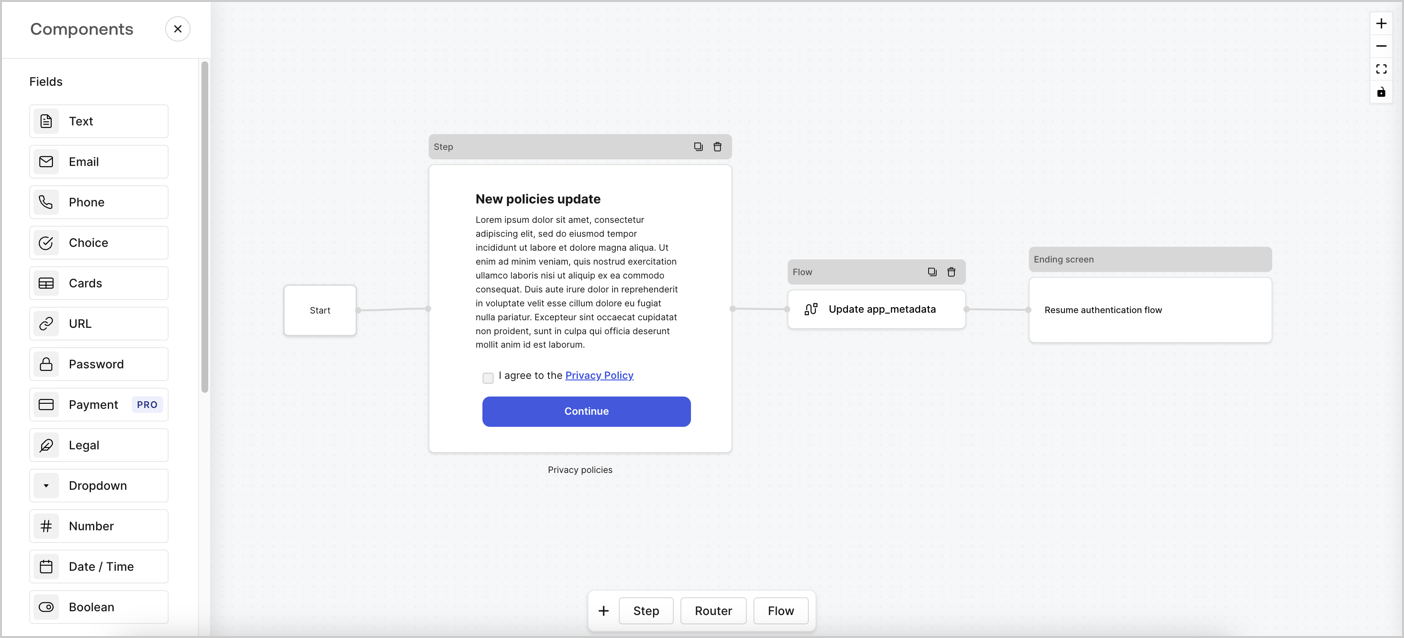
Forms for Actions allows you to create custom privacy policies flows and store the consent under the `app_metadata` object.
<Frame>
  <img src="https://mintcdn.com/docs-staging-feat-docs-5569-member-mgmt/Ga6b_OdkrJd7auBH/docs/images/cdy7uua7fh8z/6i68dMvHDTijfRmSgN1x8Q/ad900e7d4c0fb34645921435472b8684/privavy-policy-form.png?fit=max&auto=format&n=Ga6b_OdkrJd7auBH&q=85&s=145c1a8e4f77b12d45146210583924b7" alt="Dashboard > Actions > Forms > Privacy policy use case" data-og-width="1404" width="1404" data-og-height="638" height="638" data-path="docs/images/cdy7uua7fh8z/6i68dMvHDTijfRmSgN1x8Q/ad900e7d4c0fb34645921435472b8684/privavy-policy-form.png" data-optimize="true" data-opv="3" srcset="https://mintcdn.com/docs-staging-feat-docs-5569-member-mgmt/Ga6b_OdkrJd7auBH/docs/images/cdy7uua7fh8z/6i68dMvHDTijfRmSgN1x8Q/ad900e7d4c0fb34645921435472b8684/privavy-policy-form.png?w=280&fit=max&auto=format&n=Ga6b_OdkrJd7auBH&q=85&s=ab298090748649c760ebea495bbb5974 280w, https://mintcdn.com/docs-staging-feat-docs-5569-member-mgmt/Ga6b_OdkrJd7auBH/docs/images/cdy7uua7fh8z/6i68dMvHDTijfRmSgN1x8Q/ad900e7d4c0fb34645921435472b8684/privavy-policy-form.png?w=560&fit=max&auto=format&n=Ga6b_OdkrJd7auBH&q=85&s=f6f9de246b0a127298755e31b4b67a51 560w, https://mintcdn.com/docs-staging-feat-docs-5569-member-mgmt/Ga6b_OdkrJd7auBH/docs/images/cdy7uua7fh8z/6i68dMvHDTijfRmSgN1x8Q/ad900e7d4c0fb34645921435472b8684/privavy-policy-form.png?w=840&fit=max&auto=format&n=Ga6b_OdkrJd7auBH&q=85&s=32906c9d34415da13e5b415cb1707875 840w, https://mintcdn.com/docs-staging-feat-docs-5569-member-mgmt/Ga6b_OdkrJd7auBH/docs/images/cdy7uua7fh8z/6i68dMvHDTijfRmSgN1x8Q/ad900e7d4c0fb34645921435472b8684/privavy-policy-form.png?w=1100&fit=max&auto=format&n=Ga6b_OdkrJd7auBH&q=85&s=3609ca2d92a721f31c82838b66c3e7ac 1100w, https://mintcdn.com/docs-staging-feat-docs-5569-member-mgmt/Ga6b_OdkrJd7auBH/docs/images/cdy7uua7fh8z/6i68dMvHDTijfRmSgN1x8Q/ad900e7d4c0fb34645921435472b8684/privavy-policy-form.png?w=1650&fit=max&auto=format&n=Ga6b_OdkrJd7auBH&q=85&s=3534b9ac06490980c8833d7ef4b148e0 1650w, https://mintcdn.com/docs-staging-feat-docs-5569-member-mgmt/Ga6b_OdkrJd7auBH/docs/images/cdy7uua7fh8z/6i68dMvHDTijfRmSgN1x8Q/ad900e7d4c0fb34645921435472b8684/privavy-policy-form.png?w=2500&fit=max&auto=format&n=Ga6b_OdkrJd7auBH&q=85&s=44002b0b67bada104039cdf45ed4fb8a 2500w" />
</Frame>

The sections below outline how you can create an Update Policy form using nodes and flows, along with steps for adding your form to a [Post Login](/docs/customize/actions/explore-triggers/signup-and-login-triggers/login-trigger) Action.

## Create a form from scratch

Follow these steps to create a form to gather information:

1. Open the Form editor by selecting **Auth0 Dashboard > Actions > Forms.**
2. Select **Create Form** > **Start from scratch**.

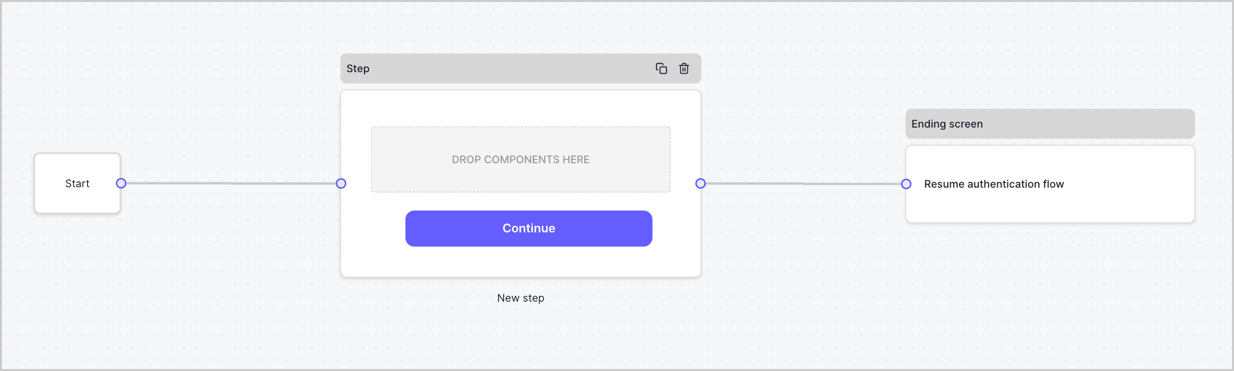
By default, a new form contains a Start node, a Step node, and an Ending screen node.
<Frame>
  <img src="https://mintcdn.com/docs-staging-feat-docs-5569-member-mgmt/oExDyJclM5R02KLP/docs/images/cdy7uua7fh8z/2TZ9jSjgEcARFpULI6hz4R/a4319a1bd482f2ee5cc23100fdb2f42c/New-form-Forms-for-action-use-case.png?fit=max&auto=format&n=oExDyJclM5R02KLP&q=85&s=ae5bc535a12f034dd666a06a507ff346" alt="Dashboard > Forms > Use Cases > Form" data-og-width="1234" width="1234" data-og-height="371" height="371" data-path="docs/images/cdy7uua7fh8z/2TZ9jSjgEcARFpULI6hz4R/a4319a1bd482f2ee5cc23100fdb2f42c/New-form-Forms-for-action-use-case.png" data-optimize="true" data-opv="3" srcset="https://mintcdn.com/docs-staging-feat-docs-5569-member-mgmt/oExDyJclM5R02KLP/docs/images/cdy7uua7fh8z/2TZ9jSjgEcARFpULI6hz4R/a4319a1bd482f2ee5cc23100fdb2f42c/New-form-Forms-for-action-use-case.png?w=280&fit=max&auto=format&n=oExDyJclM5R02KLP&q=85&s=27c320b0c8111d4855eeee7c7e3f95b0 280w, https://mintcdn.com/docs-staging-feat-docs-5569-member-mgmt/oExDyJclM5R02KLP/docs/images/cdy7uua7fh8z/2TZ9jSjgEcARFpULI6hz4R/a4319a1bd482f2ee5cc23100fdb2f42c/New-form-Forms-for-action-use-case.png?w=560&fit=max&auto=format&n=oExDyJclM5R02KLP&q=85&s=793b026854ec838dcad0c7658ebb785a 560w, https://mintcdn.com/docs-staging-feat-docs-5569-member-mgmt/oExDyJclM5R02KLP/docs/images/cdy7uua7fh8z/2TZ9jSjgEcARFpULI6hz4R/a4319a1bd482f2ee5cc23100fdb2f42c/New-form-Forms-for-action-use-case.png?w=840&fit=max&auto=format&n=oExDyJclM5R02KLP&q=85&s=679e8150bd94d5bdffc2db2d6a457740 840w, https://mintcdn.com/docs-staging-feat-docs-5569-member-mgmt/oExDyJclM5R02KLP/docs/images/cdy7uua7fh8z/2TZ9jSjgEcARFpULI6hz4R/a4319a1bd482f2ee5cc23100fdb2f42c/New-form-Forms-for-action-use-case.png?w=1100&fit=max&auto=format&n=oExDyJclM5R02KLP&q=85&s=fe1374d4f544127da30e523f53274739 1100w, https://mintcdn.com/docs-staging-feat-docs-5569-member-mgmt/oExDyJclM5R02KLP/docs/images/cdy7uua7fh8z/2TZ9jSjgEcARFpULI6hz4R/a4319a1bd482f2ee5cc23100fdb2f42c/New-form-Forms-for-action-use-case.png?w=1650&fit=max&auto=format&n=oExDyJclM5R02KLP&q=85&s=6eaceaa17ec4fb86c11575855891ea6b 1650w, https://mintcdn.com/docs-staging-feat-docs-5569-member-mgmt/oExDyJclM5R02KLP/docs/images/cdy7uua7fh8z/2TZ9jSjgEcARFpULI6hz4R/a4319a1bd482f2ee5cc23100fdb2f42c/New-form-Forms-for-action-use-case.png?w=2500&fit=max&auto=format&n=oExDyJclM5R02KLP&q=85&s=065de5c1a116d1f8da967484da94be1b 2500w" />
</Frame>

### Configure the Step node

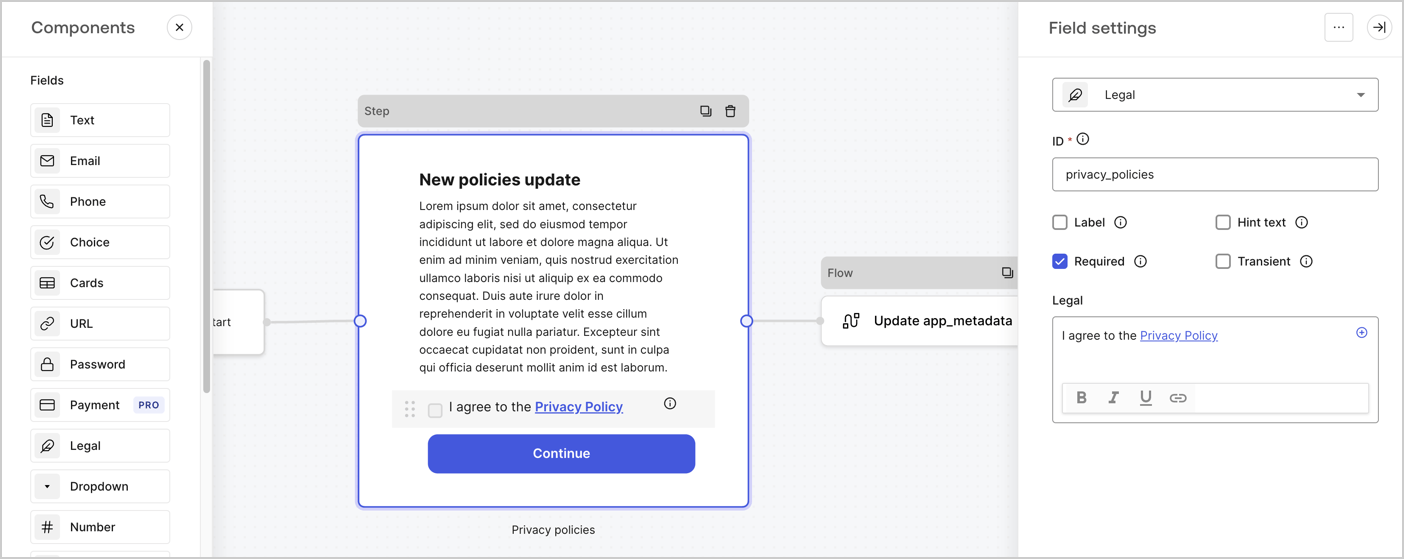
The Step node is the graphical interface visible to users. Add [Fields](/docs/customize/forms/nodes-and-components) to the Step node to collect the new agreement acceptance value by following these steps:

1. Drag a **Rich text** field from the **Components menu** into the **Step** node.

   * **Rich text**: Enter a description of your privacy policies updates.
   * Select **Save**.
2. Drag a **Legal** field into the **Step** node.

   * **ID**: Enter `privacy_policies`.
   * **Required**: Enable the checkbox.
   * **Legal**: Enter `I agree to the Privacy Policy`.
   * Select **Save**.
3. Select **Publish** to save.
<Frame>
  <img src="https://mintcdn.com/docs-staging-feat-docs-5569-member-mgmt/uvfqY1CC5hU3-Dy5/docs/images/cdy7uua7fh8z/59zFFjQjAnjogkc2QGIqqJ/0ad66b1b636544122aa4e65968b76c2c/privacy-policy-step-node.png?fit=max&auto=format&n=uvfqY1CC5hU3-Dy5&q=85&s=a7d3587a8213b6833b64dcbb11e69591" alt="Dashboard > Actions > Forms > Use case privacy policy step node" data-og-width="1404" width="1404" data-og-height="559" height="559" data-path="docs/images/cdy7uua7fh8z/59zFFjQjAnjogkc2QGIqqJ/0ad66b1b636544122aa4e65968b76c2c/privacy-policy-step-node.png" data-optimize="true" data-opv="3" srcset="https://mintcdn.com/docs-staging-feat-docs-5569-member-mgmt/uvfqY1CC5hU3-Dy5/docs/images/cdy7uua7fh8z/59zFFjQjAnjogkc2QGIqqJ/0ad66b1b636544122aa4e65968b76c2c/privacy-policy-step-node.png?w=280&fit=max&auto=format&n=uvfqY1CC5hU3-Dy5&q=85&s=236f2f36d5eef15799734f31bc2c535a 280w, https://mintcdn.com/docs-staging-feat-docs-5569-member-mgmt/uvfqY1CC5hU3-Dy5/docs/images/cdy7uua7fh8z/59zFFjQjAnjogkc2QGIqqJ/0ad66b1b636544122aa4e65968b76c2c/privacy-policy-step-node.png?w=560&fit=max&auto=format&n=uvfqY1CC5hU3-Dy5&q=85&s=11c7ef254df3bdb23b74dae8d178d32e 560w, https://mintcdn.com/docs-staging-feat-docs-5569-member-mgmt/uvfqY1CC5hU3-Dy5/docs/images/cdy7uua7fh8z/59zFFjQjAnjogkc2QGIqqJ/0ad66b1b636544122aa4e65968b76c2c/privacy-policy-step-node.png?w=840&fit=max&auto=format&n=uvfqY1CC5hU3-Dy5&q=85&s=01dee13df1313991bebe030a7ec9219e 840w, https://mintcdn.com/docs-staging-feat-docs-5569-member-mgmt/uvfqY1CC5hU3-Dy5/docs/images/cdy7uua7fh8z/59zFFjQjAnjogkc2QGIqqJ/0ad66b1b636544122aa4e65968b76c2c/privacy-policy-step-node.png?w=1100&fit=max&auto=format&n=uvfqY1CC5hU3-Dy5&q=85&s=79145ac6f2f38f50f421ac8c692c9dd6 1100w, https://mintcdn.com/docs-staging-feat-docs-5569-member-mgmt/uvfqY1CC5hU3-Dy5/docs/images/cdy7uua7fh8z/59zFFjQjAnjogkc2QGIqqJ/0ad66b1b636544122aa4e65968b76c2c/privacy-policy-step-node.png?w=1650&fit=max&auto=format&n=uvfqY1CC5hU3-Dy5&q=85&s=870bc5af1fde56286637b2599bc0d0ef 1650w, https://mintcdn.com/docs-staging-feat-docs-5569-member-mgmt/uvfqY1CC5hU3-Dy5/docs/images/cdy7uua7fh8z/59zFFjQjAnjogkc2QGIqqJ/0ad66b1b636544122aa4e65968b76c2c/privacy-policy-step-node.png?w=2500&fit=max&auto=format&n=uvfqY1CC5hU3-Dy5&q=85&s=36018f3a33186a6fd9eee077bbd51fb6 2500w" />
</Frame>

### Configure the Flow node

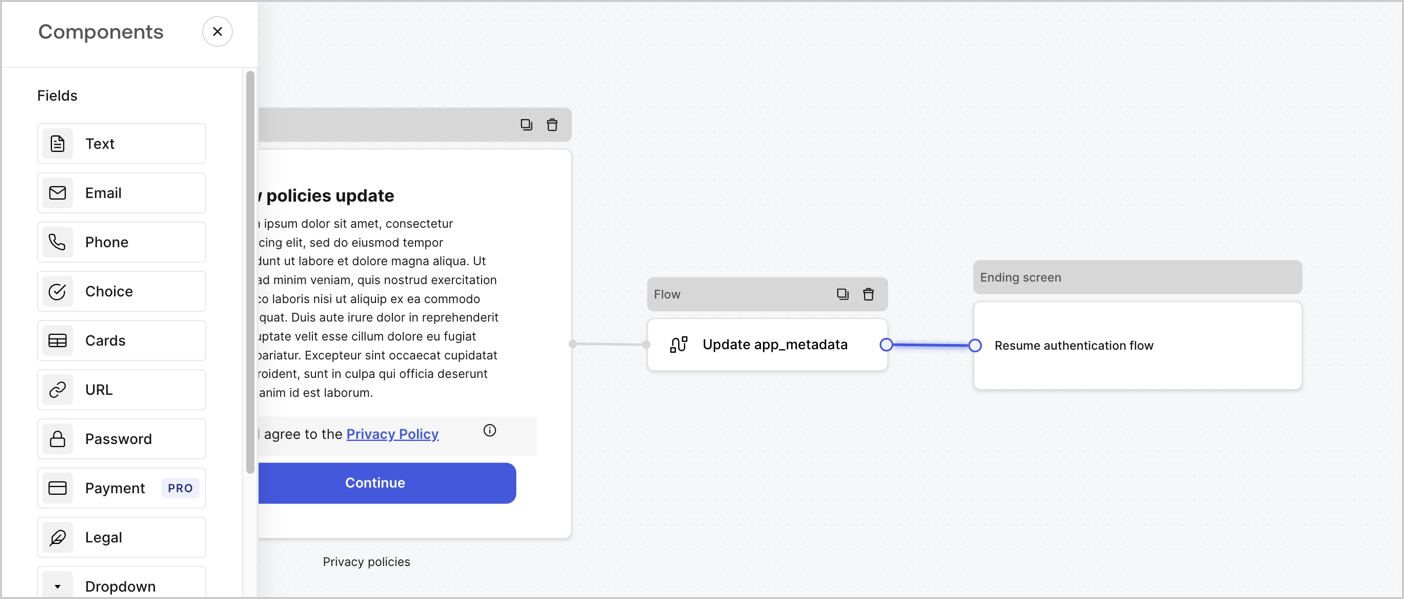
Add a **Flow** node after the **Step** node to update the `app_metadata` and resume the authentication flow by following these steps:

1. Select **Flow** from the bottom of the Form editor.
2. Remove the existing link between the **Step** and **Ending Screen** nodes.
3. Select the new **Flow** > **Click to add a flow** > **Create a new flow.**

   * Enter `Update app_metadata` in the **Name** field.
   * Select **Create**.
   * Select **Save**.
4. Link the **Flow** node to the **Step** and **Ending Screen** nodes as pictured below.
5. Select **Publish** to save.
<Frame>
  <img src="https://mintcdn.com/docs-staging-feat-docs-5569-member-mgmt/Ga6b_OdkrJd7auBH/docs/images/cdy7uua7fh8z/6YIkzm7SrpM9LW76AXuRzh/353c518fe82bbaa440836da1d83596d6/link-policies.png?fit=max&auto=format&n=Ga6b_OdkrJd7auBH&q=85&s=eee08370aab9647a18136a2210f50ec5" alt="Dashboard > Actions > Forms > Form" data-og-width="1404" width="1404" data-og-height="599" height="599" data-path="docs/images/cdy7uua7fh8z/6YIkzm7SrpM9LW76AXuRzh/353c518fe82bbaa440836da1d83596d6/link-policies.png" data-optimize="true" data-opv="3" srcset="https://mintcdn.com/docs-staging-feat-docs-5569-member-mgmt/Ga6b_OdkrJd7auBH/docs/images/cdy7uua7fh8z/6YIkzm7SrpM9LW76AXuRzh/353c518fe82bbaa440836da1d83596d6/link-policies.png?w=280&fit=max&auto=format&n=Ga6b_OdkrJd7auBH&q=85&s=375d55bbf8c89d12f465decd93abd170 280w, https://mintcdn.com/docs-staging-feat-docs-5569-member-mgmt/Ga6b_OdkrJd7auBH/docs/images/cdy7uua7fh8z/6YIkzm7SrpM9LW76AXuRzh/353c518fe82bbaa440836da1d83596d6/link-policies.png?w=560&fit=max&auto=format&n=Ga6b_OdkrJd7auBH&q=85&s=83ed18689d2c868dcd71a2a55d9fe128 560w, https://mintcdn.com/docs-staging-feat-docs-5569-member-mgmt/Ga6b_OdkrJd7auBH/docs/images/cdy7uua7fh8z/6YIkzm7SrpM9LW76AXuRzh/353c518fe82bbaa440836da1d83596d6/link-policies.png?w=840&fit=max&auto=format&n=Ga6b_OdkrJd7auBH&q=85&s=c6094e32d5fa5d2d05da15997958fb1d 840w, https://mintcdn.com/docs-staging-feat-docs-5569-member-mgmt/Ga6b_OdkrJd7auBH/docs/images/cdy7uua7fh8z/6YIkzm7SrpM9LW76AXuRzh/353c518fe82bbaa440836da1d83596d6/link-policies.png?w=1100&fit=max&auto=format&n=Ga6b_OdkrJd7auBH&q=85&s=c56d3914ae3522d40230d2db2ab6a4b1 1100w, https://mintcdn.com/docs-staging-feat-docs-5569-member-mgmt/Ga6b_OdkrJd7auBH/docs/images/cdy7uua7fh8z/6YIkzm7SrpM9LW76AXuRzh/353c518fe82bbaa440836da1d83596d6/link-policies.png?w=1650&fit=max&auto=format&n=Ga6b_OdkrJd7auBH&q=85&s=086280852eff71851acd1a2f41e47ec7 1650w, https://mintcdn.com/docs-staging-feat-docs-5569-member-mgmt/Ga6b_OdkrJd7auBH/docs/images/cdy7uua7fh8z/6YIkzm7SrpM9LW76AXuRzh/353c518fe82bbaa440836da1d83596d6/link-policies.png?w=2500&fit=max&auto=format&n=Ga6b_OdkrJd7auBH&q=85&s=cea6f3f458bbbca8c80a0545c6c4807f 2500w" />
</Frame>

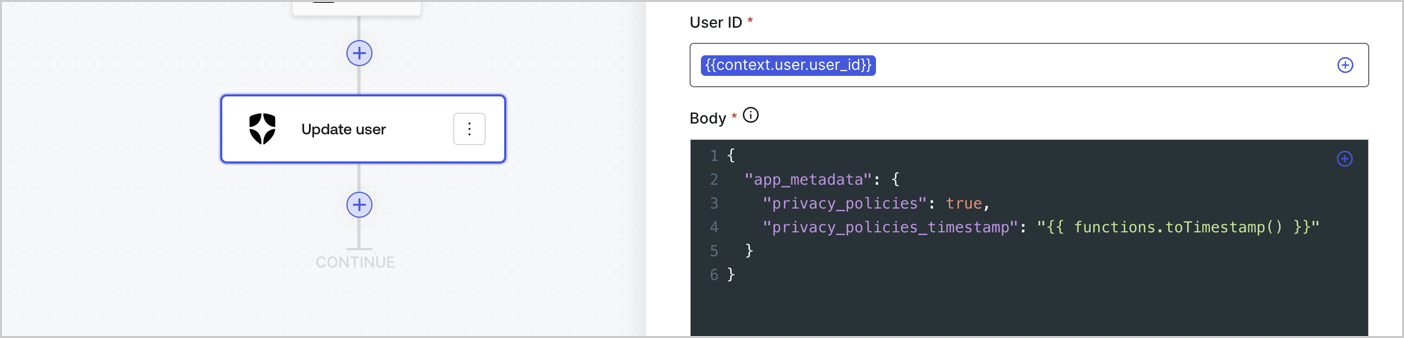
Add an Auth0 Update user action to the flow by following these steps:

1. Select the **Flow** **Update app\_metadata** > **Edit flow** to open the Flow editor in a new tab.
2. Below the StartAction, select the **+** icon to add an **Update user** action. Complete the fields below, then select **Save** to continue.

   * **Connection**: Select from the dropdown the Vault connection to your M2M application.

   * **User ID**: Enter `{{context.user.user_id}}`.

   * **Body**: Copy and paste the following code to update the app\_metadata with the privacy\_policies and privacy\_policies\_timestamp properties.

     ```text lines theme={null}
     {
       "app_metadata": {
         "privacy_policies": true,
         "privacy_policies_timestamp": "{{ functions.toTimestamp() }}"
       }
     }
     ```

   * Select **Save**.
3. Select **Publish** to save.
<Frame>
  <img src="https://mintcdn.com/docs-staging-feat-docs-5569-member-mgmt/w9QOryXH9ngXdt9p/docs/images/cdy7uua7fh8z/CvMNIwWrOUwaFW4X3G28p/1fb70ae57a20749d9ffaaba8dc0b7e26/update-user-privacy.png?fit=max&auto=format&n=w9QOryXH9ngXdt9p&q=85&s=528623e9504a01a26b9ed5164608d760" alt="Dashboard > Actions > Forms > User case privacy policy code" data-og-width="1404" width="1404" data-og-height="338" height="338" data-path="docs/images/cdy7uua7fh8z/CvMNIwWrOUwaFW4X3G28p/1fb70ae57a20749d9ffaaba8dc0b7e26/update-user-privacy.png" data-optimize="true" data-opv="3" srcset="https://mintcdn.com/docs-staging-feat-docs-5569-member-mgmt/w9QOryXH9ngXdt9p/docs/images/cdy7uua7fh8z/CvMNIwWrOUwaFW4X3G28p/1fb70ae57a20749d9ffaaba8dc0b7e26/update-user-privacy.png?w=280&fit=max&auto=format&n=w9QOryXH9ngXdt9p&q=85&s=5050367a1d4577e896ffd67f76e2e3a9 280w, https://mintcdn.com/docs-staging-feat-docs-5569-member-mgmt/w9QOryXH9ngXdt9p/docs/images/cdy7uua7fh8z/CvMNIwWrOUwaFW4X3G28p/1fb70ae57a20749d9ffaaba8dc0b7e26/update-user-privacy.png?w=560&fit=max&auto=format&n=w9QOryXH9ngXdt9p&q=85&s=0a516b07ce9b7bfcccea9fe0e9629ba6 560w, https://mintcdn.com/docs-staging-feat-docs-5569-member-mgmt/w9QOryXH9ngXdt9p/docs/images/cdy7uua7fh8z/CvMNIwWrOUwaFW4X3G28p/1fb70ae57a20749d9ffaaba8dc0b7e26/update-user-privacy.png?w=840&fit=max&auto=format&n=w9QOryXH9ngXdt9p&q=85&s=5698815a87a3adc1431f275a028d6b7b 840w, https://mintcdn.com/docs-staging-feat-docs-5569-member-mgmt/w9QOryXH9ngXdt9p/docs/images/cdy7uua7fh8z/CvMNIwWrOUwaFW4X3G28p/1fb70ae57a20749d9ffaaba8dc0b7e26/update-user-privacy.png?w=1100&fit=max&auto=format&n=w9QOryXH9ngXdt9p&q=85&s=5c4d8bdb7de02504970edfd396937fea 1100w, https://mintcdn.com/docs-staging-feat-docs-5569-member-mgmt/w9QOryXH9ngXdt9p/docs/images/cdy7uua7fh8z/CvMNIwWrOUwaFW4X3G28p/1fb70ae57a20749d9ffaaba8dc0b7e26/update-user-privacy.png?w=1650&fit=max&auto=format&n=w9QOryXH9ngXdt9p&q=85&s=ac0e95da81f51fe59dee80342897afe6 1650w, https://mintcdn.com/docs-staging-feat-docs-5569-member-mgmt/w9QOryXH9ngXdt9p/docs/images/cdy7uua7fh8z/CvMNIwWrOUwaFW4X3G28p/1fb70ae57a20749d9ffaaba8dc0b7e26/update-user-privacy.png?w=2500&fit=max&auto=format&n=w9QOryXH9ngXdt9p&q=85&s=6e075866c16f5accebebe910ee2af745 2500w" />
</Frame>

<Callout icon="file-lines" color="#0EA5E9" iconType="regular">
  The flow **Update app\_metadata** adds a `privacy_policies true` value to the app`_metadata` object and also generates a timestamp with a [helper function.](/docs/customize/forms/variables)
</Callout>

## Retrieve the form render code

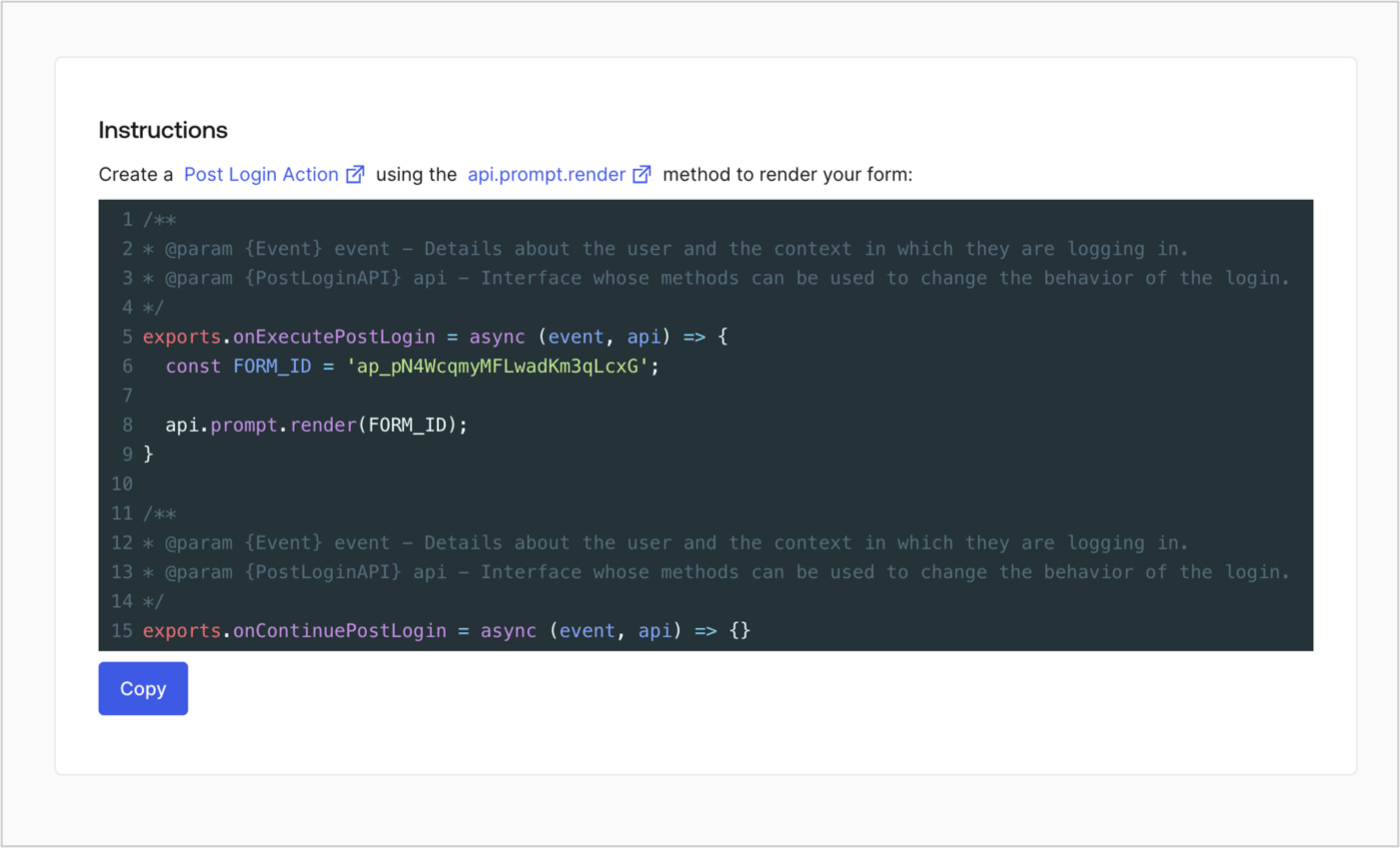
Retrieve your form render code to visually render the form with a custom Post Login Action by following these steps:

* From the Form editor, select **`<> Render`**.
* Select **Copy**.
<Frame>
  <img src="https://mintcdn.com/docs-staging-feat-docs-5569-member-mgmt/b_RwhNLdj1N54-6Y/docs/images/cdy7uua7fh8z/2EIUzc539sq9lwoTKbjoJv/496a864c0fc44a782c9cadca119dbfb0/embed.png?fit=max&auto=format&n=b_RwhNLdj1N54-6Y&q=85&s=040502989fc60c61d7db331b52943b61" alt="Dashboard > Actions > Forms > Form > Embed" data-og-width="1400" width="1400" data-og-height="848" height="848" data-path="docs/images/cdy7uua7fh8z/2EIUzc539sq9lwoTKbjoJv/496a864c0fc44a782c9cadca119dbfb0/embed.png" data-optimize="true" data-opv="3" srcset="https://mintcdn.com/docs-staging-feat-docs-5569-member-mgmt/b_RwhNLdj1N54-6Y/docs/images/cdy7uua7fh8z/2EIUzc539sq9lwoTKbjoJv/496a864c0fc44a782c9cadca119dbfb0/embed.png?w=280&fit=max&auto=format&n=b_RwhNLdj1N54-6Y&q=85&s=1797904b91cb8147de4bec643db16876 280w, https://mintcdn.com/docs-staging-feat-docs-5569-member-mgmt/b_RwhNLdj1N54-6Y/docs/images/cdy7uua7fh8z/2EIUzc539sq9lwoTKbjoJv/496a864c0fc44a782c9cadca119dbfb0/embed.png?w=560&fit=max&auto=format&n=b_RwhNLdj1N54-6Y&q=85&s=7247a8692bc0cf5fec4cb214bdac4cb4 560w, https://mintcdn.com/docs-staging-feat-docs-5569-member-mgmt/b_RwhNLdj1N54-6Y/docs/images/cdy7uua7fh8z/2EIUzc539sq9lwoTKbjoJv/496a864c0fc44a782c9cadca119dbfb0/embed.png?w=840&fit=max&auto=format&n=b_RwhNLdj1N54-6Y&q=85&s=d9a9d4f974d6094555688048c0484f01 840w, https://mintcdn.com/docs-staging-feat-docs-5569-member-mgmt/b_RwhNLdj1N54-6Y/docs/images/cdy7uua7fh8z/2EIUzc539sq9lwoTKbjoJv/496a864c0fc44a782c9cadca119dbfb0/embed.png?w=1100&fit=max&auto=format&n=b_RwhNLdj1N54-6Y&q=85&s=84666b5138d3a3c8e63012e1f71550a8 1100w, https://mintcdn.com/docs-staging-feat-docs-5569-member-mgmt/b_RwhNLdj1N54-6Y/docs/images/cdy7uua7fh8z/2EIUzc539sq9lwoTKbjoJv/496a864c0fc44a782c9cadca119dbfb0/embed.png?w=1650&fit=max&auto=format&n=b_RwhNLdj1N54-6Y&q=85&s=23736ade9d83f5a742b23323836bda80 1650w, https://mintcdn.com/docs-staging-feat-docs-5569-member-mgmt/b_RwhNLdj1N54-6Y/docs/images/cdy7uua7fh8z/2EIUzc539sq9lwoTKbjoJv/496a864c0fc44a782c9cadca119dbfb0/embed.png?w=2500&fit=max&auto=format&n=b_RwhNLdj1N54-6Y&q=85&s=05414aa1cd05d3b5cafad71807aa5190 2500w" />
</Frame>

## Create a Post Login Action

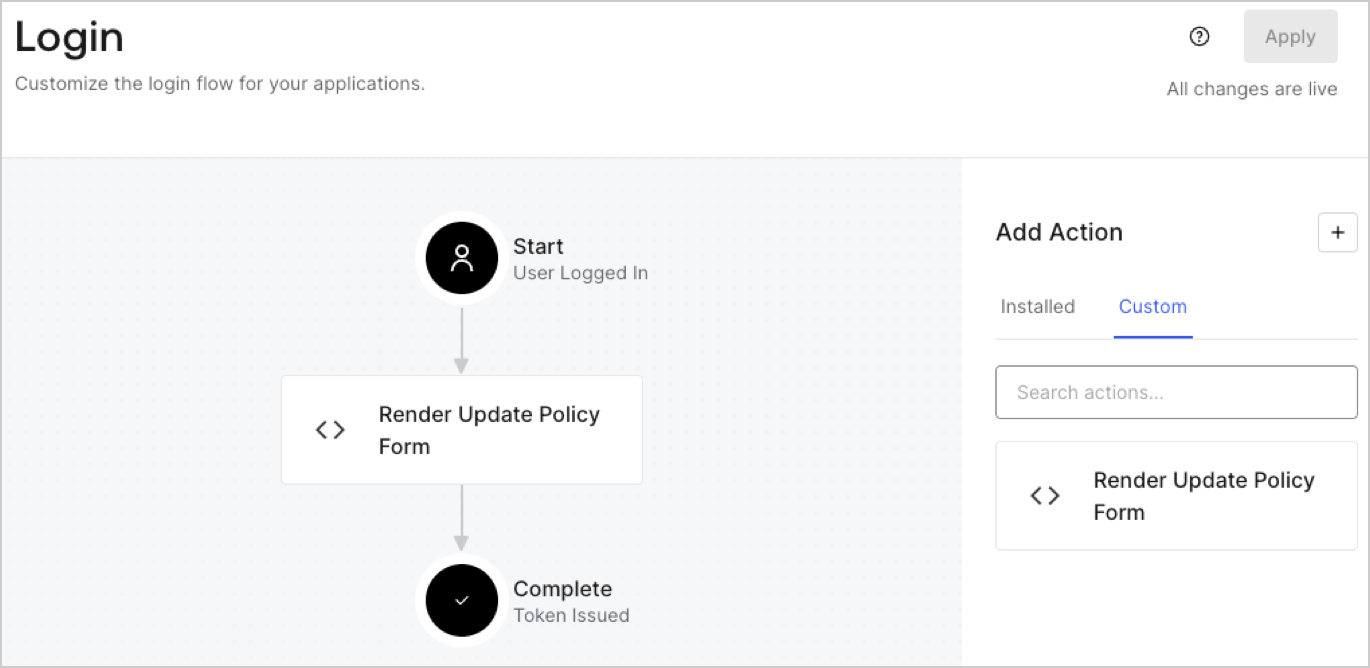
Create a post-login Action to render your form by following these steps:

1. Navigate to **Auth0 Dashboard > Actions > Flows > Login.**
2. Select the **+** icon and Select **Build from scratch**:

   * **Name**: Enter `Render Update Policy Form`.
   * **Trigger**: Select `Login / Post Login`.
   * **Runtime**: Select the recommended version.
3. Select **Create**.

To configure the post-login Action:

1. Delete the existing code from the Code editor.
2. Paste the form render code into the Code editor.
3. Edit the code to define the conditional logic that will render the form.

   ```javascript lines theme={null}
   /**
   * @param {Event} event - Details about the user and the context in which they are logging in.
   * @param {PostLoginAPI} api - Interface whose methods can be used to change the behavior of the login.
   */
   exports.onExecutePostLogin = async (event, api) => {
     const FORM_ID = 'REPLACE_WITH_YOUR_FORM_ID';

     if (event.user.app_metadata.privacy_policies !== true) {
       api.prompt.render(FORM_ID);
     }
   }

   exports.onContinuePostLogin = async (event, api) => { }
   ```

   <Callout icon="file-lines" color="#0EA5E9" iconType="regular">
     The example code above will render the form when a user is missing the app metadata `privacy_policies` property.
   </Callout>
4. Select **Deploy.**
5. Drag and Drop the **Render Update Policy Form** Action to the **Login** flow.
   <Frame>
     <img src="https://mintcdn.com/docs-staging-feat-docs-5569-member-mgmt/LgceDABJOTW3jTPp/docs/images/cdy7uua7fh8z/5TOwDgevZsBqd7yZynUYWU/41ca909dc3007aed4f40ff794a05efa5/postlogin.png?fit=max&auto=format&n=LgceDABJOTW3jTPp&q=85&s=d50ff4790424ffd3f8a2e90b28548348" alt="Dashboard > Forms > Use Case > Render update policy form login action" data-og-width="1370" width="1370" data-og-height="668" height="668" data-path="docs/images/cdy7uua7fh8z/5TOwDgevZsBqd7yZynUYWU/41ca909dc3007aed4f40ff794a05efa5/postlogin.png" data-optimize="true" data-opv="3" srcset="https://mintcdn.com/docs-staging-feat-docs-5569-member-mgmt/LgceDABJOTW3jTPp/docs/images/cdy7uua7fh8z/5TOwDgevZsBqd7yZynUYWU/41ca909dc3007aed4f40ff794a05efa5/postlogin.png?w=280&fit=max&auto=format&n=LgceDABJOTW3jTPp&q=85&s=ee2a2a3d183c622830e278df231c1c5f 280w, https://mintcdn.com/docs-staging-feat-docs-5569-member-mgmt/LgceDABJOTW3jTPp/docs/images/cdy7uua7fh8z/5TOwDgevZsBqd7yZynUYWU/41ca909dc3007aed4f40ff794a05efa5/postlogin.png?w=560&fit=max&auto=format&n=LgceDABJOTW3jTPp&q=85&s=bc07cf3b85f8457b5e85e32d6c71b1e9 560w, https://mintcdn.com/docs-staging-feat-docs-5569-member-mgmt/LgceDABJOTW3jTPp/docs/images/cdy7uua7fh8z/5TOwDgevZsBqd7yZynUYWU/41ca909dc3007aed4f40ff794a05efa5/postlogin.png?w=840&fit=max&auto=format&n=LgceDABJOTW3jTPp&q=85&s=ee56754364c4f1e8e9030cba26ad0f45 840w, https://mintcdn.com/docs-staging-feat-docs-5569-member-mgmt/LgceDABJOTW3jTPp/docs/images/cdy7uua7fh8z/5TOwDgevZsBqd7yZynUYWU/41ca909dc3007aed4f40ff794a05efa5/postlogin.png?w=1100&fit=max&auto=format&n=LgceDABJOTW3jTPp&q=85&s=ee3d4ab60474c31083abf4c532296898 1100w, https://mintcdn.com/docs-staging-feat-docs-5569-member-mgmt/LgceDABJOTW3jTPp/docs/images/cdy7uua7fh8z/5TOwDgevZsBqd7yZynUYWU/41ca909dc3007aed4f40ff794a05efa5/postlogin.png?w=1650&fit=max&auto=format&n=LgceDABJOTW3jTPp&q=85&s=de41948dc8c22bda4429dc7567d4f150 1650w, https://mintcdn.com/docs-staging-feat-docs-5569-member-mgmt/LgceDABJOTW3jTPp/docs/images/cdy7uua7fh8z/5TOwDgevZsBqd7yZynUYWU/41ca909dc3007aed4f40ff794a05efa5/postlogin.png?w=2500&fit=max&auto=format&n=LgceDABJOTW3jTPp&q=85&s=8607d26f43d0fae82c6f54a075f2208e 2500w" />
   </Frame>
6. Select **Apply.**

### Test implementation

Test the implementation by following these steps:

1. Log in with an existing user whose app`_metadata` attribute `privacy_policies` does not have a value.
2. The post-login Action in the Login flow will render the form and prompt for acceptance.
3. Select **Auth0 Dashboard > User Management > Users,** locate the user and verify that the `app_metadata` attribute `privacy_policies` contains a `true` value and a timestamp.
